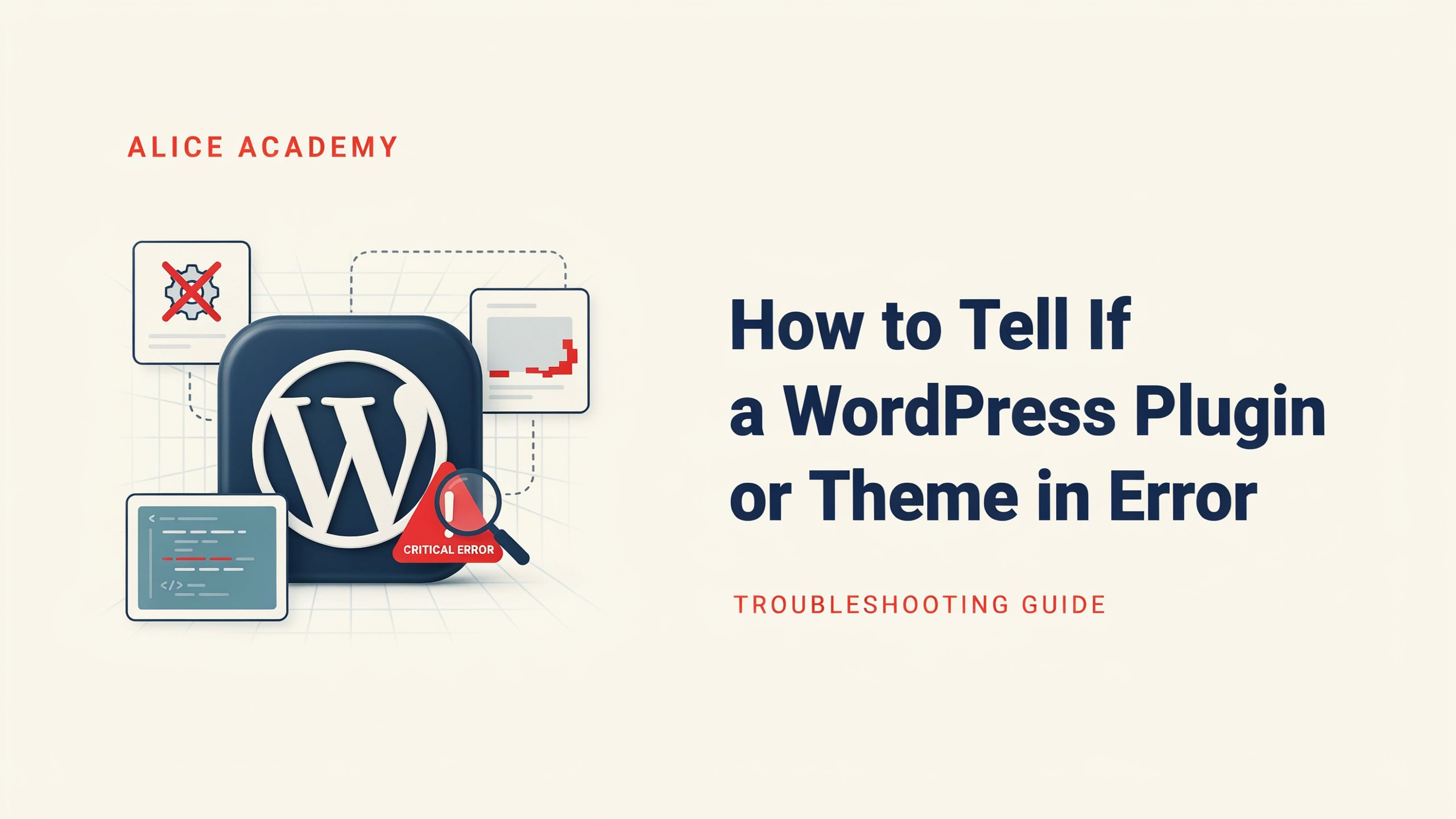
How to Tell If a WordPress Plugin or Theme Is Causing an Error
WordPress: So your site’s broken. Maybe it’s a blank white page. Maybe the layout’s gone sideways — menu’s missing, text is overlapping, half the page looks like it forgot its CSS. Whatever it is, you probably just updated something, or installed a new plugin, and now you’re stuck staring at a screen trying to figure out what you touched.
I’ll be honest with you — this happens constantly with WordPress, and it’s rarely as bad as it looks in the moment. In many cases, the cause is a plugin or theme conflict, especially if the problem showed up right after an update or a new install. Figuring out which one it is doesn’t take any real coding skill. It just takes a bit of process, and a little patience while you work through it.
Quick Diagnostic: What to Check First
Before you go step by step through the full guide, here’s a fast way to narrow things down based on what you’re actually seeing.
| What you’re seeing | Start by checking |
|---|---|
| Completely white/blank screen | Debug logging, then plugins via Recovery Mode or FTP |
| Layout broken, spacing off, sections stacked wrong | Theme, or a plugin touching CSS/JS (page builder, optimizer) |
| A specific feature stopped working (form, checkout, button) | The plugin responsible for that exact feature |
| Site looks fine but something’s clearly cached/old | Clear cache first — plugin, host, CDN, browser |
| Menus, buttons, or forms unresponsive but page loads fine | Browser console (F12) for JavaScript errors |
| An actual error message on screen | Screenshot it — it often names the file or plugin directly |
Keep this table in mind as you go — it’ll save you from working through steps that don’t apply to your situation.
Before You Touch Anything: Back Up If You Can
This is worth doing before you start poking around, not after something goes wrong. Even a quick backup through a plugin, or an export from your host’s control panel, gives you a way back if a step doesn’t go as planned. If your host offers a staging site, doing your testing there instead of on the live site is even safer — worth checking if that option exists for you.
With that out of the way, let’s actually dig into it.
Figure Out What You’re Actually Looking At
Take a second to look closely at what’s happening, because it changes where you start.
A totally white, blank screen is what people call the “White Screen of Death” — a dramatic name for a fairly ordinary problem. It usually means PHP hit an error somewhere and WordPress gave up rendering anything at all. Plugins cause this most often, though a broken theme file can do it too.
If the page loads but looks wrong — spacing’s off, sections are stacked oddly, images won’t show — that’s usually more of a theme issue, or a plugin that touches styling directly, like a page builder or an optimization plugin minifying your CSS badly.
If something specific just stopped working — a contact form, a checkout button — that almost always points at the plugin responsible for that feature.
And if you see an actual error message on the page, something like “There has been a critical error on this website,” screenshot it. It’s often more useful than people expect, and sometimes it’ll name the plugin or file directly.
Clear Your Cache and Test Again
Before assuming it’s a plugin or theme problem, rule out cache. A layout that looks broken, or a fix that doesn’t seem to “take” after you make a change, is sometimes just an old cached version being served back to you.
Clear the cache in a few places: any caching plugin you’re running (WP Rocket, LiteSpeed Cache, etc. usually have a “clear cache” button in the dashboard), your hosting’s server-level cache if it offers one, your CDN if you’re using Cloudflare or similar, and finally your own browser cache — or just try loading the site in a private/incognito window. If the error disappears after that, cache was the whole problem, and you can skip everything below.
Check the Browser Console for JavaScript Errors
If the page loads and looks mostly normal, but something’s not responding — a menu that won’t open, a button that does nothing, a form that won’t submit — the issue might be JavaScript, not PHP.
Right-click anywhere on the page, choose Inspect (or press F12), and click over to the Console tab. Reload the page. If there’s a script conflict, you’ll usually see red error text referencing a specific file — often a plugin’s script file, which gives you a strong hint about what’s causing it.
Turn On Debug Logging If You Need More Information
If you’re comfortable poking around your site’s files, this step can save you a lot of guesswork.
Open your wp-config.php file — accessible through your hosting’s file manager or via FTP — and look for this line:
define('WP_DEBUG', false);Change false to true. But rather than letting errors display directly on the page (which isn’t great for a live site, since visitors could see them too), it’s better to log errors to a file instead. Add these lines alongside it:
define('WP_DEBUG_LOG', true);
define('WP_DEBUG_DISPLAY', false);
This writes any errors to a file at wp-content/debug.log instead of showing them publicly. You can open that file through your file manager to see exactly what’s failing — which plugin, which file, which line.
Once you’re done troubleshooting, switch WP_DEBUG back to false. Leaving debug logging on indefinitely isn’t necessary and adds a bit of clutter over time.
If editing files isn’t something you want to deal with, that’s fine — skip this and move on. You can still solve this without it.
Can’t Access Your Site at All? Try Recovery Mode First
If your dashboard is completely unreachable because of a white screen, WordPress actually has a built-in safety net for exactly this situation. Since WordPress 5.2, when a plugin or theme causes a fatal error, WordPress often sends an email to the site admin with a special “Recovery Mode” link.
Check the inbox tied to your admin account for an email with a subject like “Your Site is Experiencing a Technical Issue.” Clicking the link inside logs you into a special recovery session where WordPress shows you which plugin or theme caused the crash, and lets you deactivate it directly from the dashboard — no FTP required. It’s worth checking this before jumping into file manager territory, since it’s usually the fastest path back in.
If no such email arrives, or you can’t access that inbox, the FTP method below still works as a fallback.
The Real Fix: Turn Everything Off, Then Bring It Back One Piece at a Time
This is one of the most reliable ways to isolate a plugin conflict, and it works regardless of your skill level. The logic is simple — remove every plugin from the picture, confirm your site’s fine again, then switch plugins back on one at a time until the problem shows back up.
If you can get into your dashboard, WordPress also has a built-in Troubleshooting Mode (via the Health Check & Troubleshooting plugin) that lets you test this without affecting what other visitors see — it temporarily disables plugins and switches to a default theme just for your own logged-in session. It’s a nice option if you don’t want your live site looking broken to visitors while you’re testing.
Otherwise, the manual way works just as well:
Head to Plugins, then Installed Plugins. Select everything, pick Deactivate from the bulk actions menu, and apply it. Check your site. If the problem disappears, a plugin is likely involved.
From there, turn plugins back on one by one, checking the site after each. Whichever one you activate right before the error comes back — that’s your problem plugin.
It’s a bit tedious with a lot of plugins installed, but it remains one of the most accurate ways to pin down what’s wrong.
If your site’s completely white-screened, Recovery Mode isn’t available, and you can’t reach the dashboard, go through FTP or your host’s File Manager instead.
Navigate to wp-content/plugins. Rename the whole plugins folder to something like plugins-disabled — this deactivates every plugin at once, since WordPress can no longer find them. Check your site.
If it loads, rename the folder back to plugins, then go inside it and rename individual plugin folders one at a time (say, woocommerce becomes woocommerce-off), checking the site between each, until you find the culprit.
Renaming folders through FTP sounds intimidating if you’ve never done it, but nothing gets deleted and no code gets edited — it’s just a name change.
Still Broken After Disabling Plugins? Check the Theme Next
If plugins weren’t the issue, the theme is next. Go to Appearance, then Themes, and switch to one of the default WordPress themes currently available on your site. Reload the page.
If that clears things up, your original theme — or a conflict between the theme and something else — was behind it. If the error’s still there even on a default theme, the plugin and theme aren’t your problem, and you’ll need to look elsewhere.
If It’s Not the Plugin or the Theme, What Else Could It Be?
At that point, you’ll need to investigate other causes such as hosting, WordPress core files, caching configuration, PHP version settings, or the database itself. A few starting points:
- Check with your hosting provider — server resource limits or an outage on their end can produce errors that look identical to a plugin conflict.
- Confirm your PHP version is current and compatible with your WordPress version, under Tools → Site Health if you can access it.
- Consider whether a core WordPress file might have gotten corrupted — re-uploading fresh core files (without touching wp-content) can resolve this without losing your content.
You Found the Problem Plugin — Now What?
A few honest options here:
Check for an update — a lot of these conflicts happen because a plugin hasn’t caught up with your current WordPress version. Updating it might resolve everything on its own.
Search around. Something like “[plugin name] white screen” usually turns up other people who hit the same wall, sometimes with a fix the developer already posted.
Try reinstalling it. Plugin files occasionally get corrupted mid-update, and a clean reinstall can fix that without wiping saved settings.
Or, if it’s an old, poorly maintained plugin causing repeated issues, it might genuinely be time to find a better-supported alternative.
Wrapping Up
A website error like this feels worse than it usually is, especially the white screen ones. Deactivating everything and bringing it back piece by piece isn’t glamorous, but it’s one of the more dependable ways to isolate the cause, and it doesn’t require any coding knowledge to pull off.
Once you’ve tracked down whatever was causing it, it’s worth getting into the habit of updating plugins and themes regularly, and testing bigger updates on a staging site first if your host offers that option. Easier to avoid this next time than to chase it down again.